NH Code Camp Presentations – MMC 3.0 Development with .Net

OK…having shoveled and shoveled and shoveled out of today’s snowstorm, I can finally turn my attention to putting these presentations online. I’m going to start with the MMC Presentation in one shot, then do the Silverlight Presentation as a series of updates.

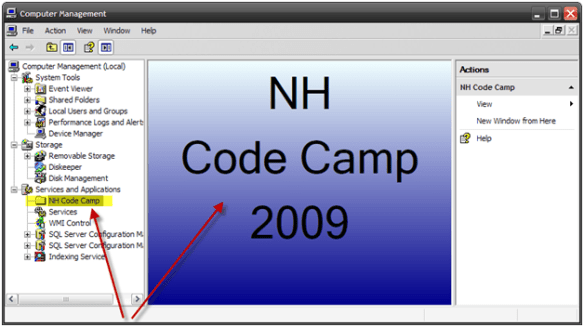
The focus of the presentation was using the MMC 3.0 API exposed in the Windows SDK to do what is pictured below – write content such as an administration tool and integrate it in a way that makes it look integrated into the Windows Shell.

Quite often, server-side components end up being managed through some hastily written application that is installed with as little integration as a presence in the Start Menu and perhaps a shortcut on the desktop.

So anyway, the presentation slides are here (I use SkyDrive for these because WordPress is not the best for file storage and retrieval):

Slides and Script

Code

Not that I use Mindjet MindManager for my presentation prep, which is where I keep my scripts. The output animated PDF reads much the same as the original…start at 12:00 and read clockwise around. The little “paper” icons are the topic notes – which house the text.


New Hampshire Code Camp

Wow have I been bad about (not) posting here. I just did the NH Code Camp yesterday (Saturday.) The event went very well, especially so considering it was the first one put on by Pat Tormey and the NH .Net User Group.

I gave 2 presentations – a refined version of the “Writing Custom Admin Consoles with .Net and MMC 3.0″ that I debuted at the last Boston .Net code camp, as well as a premiere version of a Silverlight 2.0 for business applications presentation. The first one had a whopping audience of 3 (one of whom was there because he was presenting in the same room after me), but the Silverlight presentation had a full room. I ran a bit long with the SL presentation, and my configuration for the ASP.Net membership service blew up, but overall I think it went OK (I still need to get the review sheets to know for certain.) I will likely be revising & reprising the Silverlight presentation next month at Boston.Net’s next code camp.

Unfortunately, I was not able to get my presentations up today, but I will be putting them up through the week (weather/shoveling permitting.) In the meantime, I keep my public presentation materials on my SkyDrive here.

Framework Design Guidelines Second Edition Released


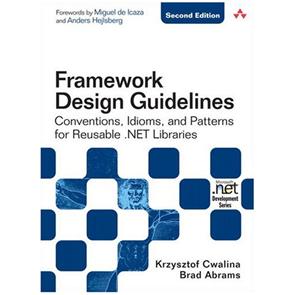
Not exactly breaking news, but the second edition of Krzysztof Cwalina and Brad AbramsFramework Design Guidelines book has been released by Addison-Wesley Professional. This book falls into the “must read” category for any .Net developer, whether they are a member of a large or small team, working on client or server code.

The Guidelines have evolved over time as Microsoft itself has been laying out the .Net Framework, its assemblies, namespaces, classes and other such material. As such, it serves on several levels. First, it provides valuable insight into how and why things are organized the way they are in the .Net framework. Second, it provides invaluable guidance to .Net developers based on lessons learned “in the real world” as to how to approach the layout and content of your own code, not only for intra-team collaboration and external publication, but also for future understanding and reuse of your own code. Not many developers get to work on projects with the size and scope of the .Net framework, so this kind of insight and transparency is rare and extremely valuable.

The book is well written and includes advice in the form of Do, Don’t, Consider, Avoid, etc. with examples mostly in C# but also some VB.Net and other languages mixed in. Also notable are sidebars from various prominent members of the development community adding to the explanation of a presented topic.

My only criticism of the second edition is that the editing process was not thorough enough. Several section references and “later content” descriptions are built around the layout of the first edition of the book (the technical content itself appears complete and accurate.) If you are reading it and appear to have gotten lost when looking for some referenced content, consult the TOC or the Index and the correct information should be easy enough to locate.

The book can be ordered here.

Visual Studio Modeling PowerToys Addin

Until the release of Visual Studio 2010 and the Oslo Modeling platform, dealing with your code visually is either the province of 3rd party tools or you can choose to use the Class Diagram tool in the current edition of Visual Studio.

Until recently I had been favoring the latter approach. Technically, I still am, but I just stumbled into an addin that greatly extends the reach of the tool. PowerToys for the Class Designer and Distributed System Designer is freely available from CodePlex.

After installation, the Class Diagram tool is enhanced with several new features, including:

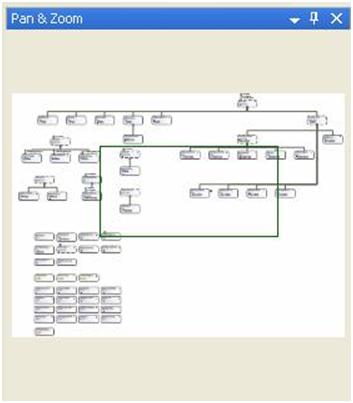
  • Pan/Zoom window for the Class Diagram (similar to Visio and other applications)
  • Find in diagram search
  • Use the Windows Forms designer/layout commands to align modeling elements
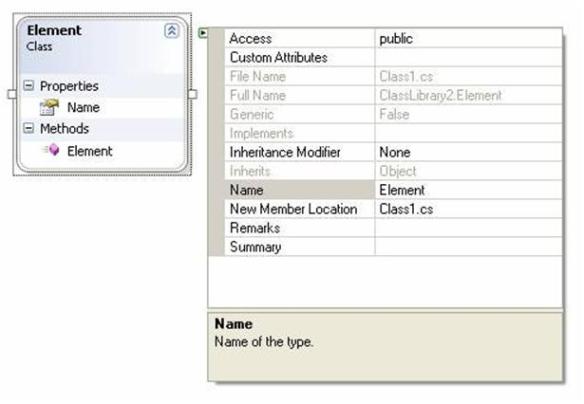
  • Floating property grid for your class
  • IE-like mouse scrolling
  • Double-click to create comments in the diagram
  • Optionally display a positioning-grid in the designer
  • Export diagram for the web
  • Documentation tool window (for XML Documentation)
  • Content Filtering
  • Highlight all members of an interface displayed on the lollipop
  • Drag inheritance and association lines from one diagram item to another
  • More…

Overall, the features provided greatly enhance the functionality provided by the Class Designer. Click here to download or learn more about the tool.

A couple of screenshots taken from the product’s documentation:

Figure 1- Floating Properties Window

Figure 2- Pan & Zoom Window

Free CodeRush Xpress for C#

In case you missed it, Microsoft and Developer Express have announced a new version of the DevExpress CodeRush and Refactor! Pro tools, called CodeRush Xpress. It includes a reduced set of the features that are included in the premier versions of these applications, and it is FREE! (Not that I’ll use it, but this may have been the second valid use of the old and hated HTML Blink tag…)

CodeRush/Refactor! are a couple of developer productivity tools that enhance the Visual Studio 2008 IDE (comparable to JetBrains’ ReSharper application.)

More information about the available features is available here or here. The download link is here.

CodeCamp 10 Presentations Online

Yesterday I gave my aforementioned presentations at the New England Code Camp. Overall, things went well, especially considering this was my first public speaking opportunity. My presentations did run a bit long, and I had to omit some things I had originally wanted to go over. From my own notes, some one-on-one feedback, and some of the review sheets (which were quite positive…thanks!), I plan to make some changes to the presentations in the hopes that they will flow a little faster and hopefully we can concentrate more on the content and less on my ability to type in an audience setting.

I am taking 2 approaches to publishing the presentation content. First, the raw slide decks and Visual Studio solutions have been published (links below.) Then, over the next few days, I will both augment the code so that the key points are called out (more comments, etc.) as well as write some posts dedicated to covering some of the details in a more conversational format.

Because WordPress is a little flaky when it comes to how files are stored, I am storing the content in some publicly accessible SkyDrive folders. The PowerPoint slide decks are written in PowerPoint 2007, and the source code projects are Visual Studio 2008 projects. (For Office 2003 & Office XP users, some compatibility information is available here.)

C++/CLI Presentation Content

MMC Presentation Content

Many thanks to my 2 audiences and for the congratulations and well-wishes I received. I definitely plan do this again – only better.

Office 2007 Compatibility

I have been using Office 2007 since the Betas and followed its development extensively (Jensen Harris is a Program Manager in the Office User Experience Team who published a series of Blog posts that gave an incredible amount of detail into the how the new UI came to be, as well as the some valuable history into the evolution of the Office Suite. His Blog can be found here.) I have been quite impressed with the new products. The new XML-based documents allow for some great programmability options, and the Ribbon UI was quite easy to adapt to, and now that I am used to it, I really do feel that my productivity has actually increased (I am looking forward to the integration of the ribbon UI into parts of the upcoming Windows 7 UI.)

All that being said, a lot of people have not made the move, for quite a number of reasons. Sometimes it is organizational / cost related; other times it can be because the transition from memorized menu-command layouts to the Ribbon layout can be daunting. There are actually a few really interesting tools to help bridge some of these gaps, and I will discuss a few below.

Office Compatibility Pack

Microsoft actually released an update for the Office XP and Office 2003 suites that allows Word, Excel, and PowerPoint files written in Office 2007 (docx, xlsx, and pptx extensions respectively) to be opened in these earlier versions of the suite. The Compatibility Pack description and download link can be found here.

Interactive Command Guides

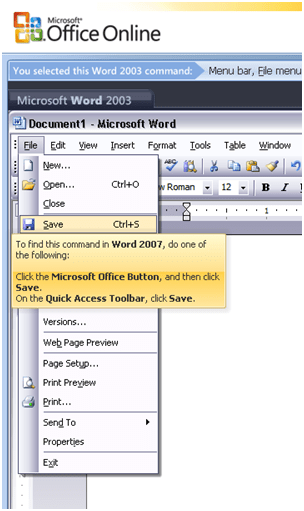
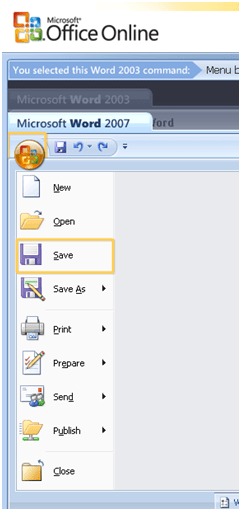
Another tool that was released to help bridge between the two suite versions is an online interactive command guide. The various web apps present the original Office 2003 menus and toolbars. Selecting an item will trigger an animation that shows the corresponding location of that command within the new Office 2007 UI.

Figure 1- File/Save in Word 2003 and Corresponding Save in Word 2007

Links to the Command Guide Follow.

Word Command Guide

Excel Command Guide

PowerPoint Command Guide

Outlook Command Guide

Getting Started Addin

The last compatibility tool I plan to discuss is the Getting Started addin for the Office Suite. Downloading and installing this addin from Microsoft adds a new “Get Started” tab to Excel, PowerPoint, and Word. The new tab includes demo videos, links to the Interactive Compatibility Guides listed above, and other interactive learning materials. Information about the addins and download links can be found here.

Search Commands Addin

Microsoft created a group within the Office team called the Office Labs. As Jensen Harris puts it, the group’s charter is largely to “create concept cars.” One of their efforts has yielded an addin called Search Commands. Installing Search Commands results in a new tab in your Office applications that allows you to enter a term and search for matching commands. The Search Commands ribbon contents are populated with the command buttons that match your search term, and you can select the command directly by selecting one of these buttons. The Search Commands Addin is available here.

Keep in mind that the tools produced by the Office Labs are experimental, and neither support nor continued development is guaranteed.

Figure 2- Searching for Open in Word

I’m Going Camping

The Schedule for Code Camp 10 (Dev InTENsity) was published this morning, and it looks like I’ll be presenting. I’ve signed up to give 2 presentations: “When .Net Isn’t Enough – An Introduction to C++/CLI” and “Using MMC 3.0 and .Net to Write Custom Administration Tools”. I’ve been scheduled to speak at 9:10 AM and 10:35 AM on Saturday, September 20.

Beyond my presentations, there are a lot of other presentations on a variety of .Net topics going on throughout the weekend. The presentation list is available here. Lunch will be provided on both days courtesy of Magenic and Syrinx. On Saturday there will be a “Geek Gathering” (if my wife reads this, I’ll never hear the end of it…) following the sessions at the Waltham Westin lobby bar.

I’m trying to figure out how to do all this on Saturday and still catch the Florida / Tennessee game (3:30 PM kickoff.) Hopefully my SlingBox will have me covered.

More details, including the full schedule and a link to the Microsoft Waltham office location can be found at Chris Bowen’s Blog. See you there!

Where I Lay My Head is 127.0.0.1

With all due respect to Metallica…

Okay…time for the big announcement. A few weeks ago XOS Technologies and I parted company. This ended a 10-year run in a very narrow vertical market – aimed at Sports Video and Analysis technology. Actually, it goes a little longer than that, as prior to being a member of the Engineering team (at Avid Sports,) I was actually a customer at both the University of Florida and the University of Illinois.

I have accepted new employment out of the Waltham office of Burntsand, and begin tomorrow (September 3.) I will be joining Burntsand as a Senior Consultant, and I believe that my first engagement with them will be as a subcontractor under Microsoft Consulting Services for a New England client. Burntsand is a Microsoft Certified Gold Partner and a leader in business consulting and technology services.

For me, this is a phenomenal opportunity, and I am excited to the point of being downright giddy. Obviously, I have been in one market for a long 10 years (albeit with very different companies through that period, including Avid Sports, Pinnacle Systems, and XOS Technologies.) This opportunity should give me, over time, the chance to be exposed to several other markets. Also, I often participate in regional development events, and many of the speakers who have impressed me through the years have themselves been employed by Consulting Firms – I am getting a chance to walk in good footsteps. The relationship with Microsoft was also a big draw for me. Along with this, they have a practice of actively encouraging certifications and career development…why not get acknowledgement for what I do on my own time anyway? Finally, the people there have been top-notch. At XOS, we had been engaged with Burntsand for several months now, and overall I have been impressed by the guys I’ve had a chance to collaborate with.

So now it is time for a new adventure. I’ll keep folks posted as to how things go. It should be fun…

The Wonders of Technology

As many of you know, I am a vocal proponent of Media Center technology, having powered my home entertainment center with a Windows Media Center for several years now. A natural pairing to the Media Center technology is the ESPN 360 service.

Being a Florida Gator fan living in northern New England, it can be difficult to catch all of my team’s football games each season. Unless they’re playing a nationally telecast game, and if there isn’t a Big 10 team playing somebody, there’s a good chance it won’t be aired up here. Satellite is an option, but has obvious drawbacks, and while I tried getting together with the regional Gator Club, driving into Boston from New Hampshire every Saturday was just a little unwieldy.

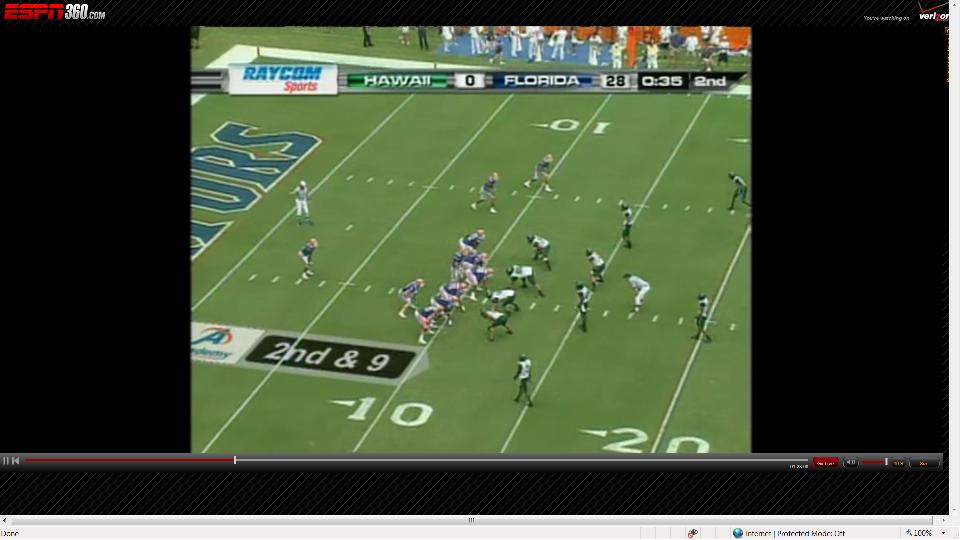
When I first moved up here in 1998, I used to drive into the office on Saturday’s so I could listen to the game on Internet Radio using the work connection, which was substantially better than the dialup available out of my home. Then DSL became available and I was able to listen from home. Now, a short 10 years later, I am not only able to listen to the games from home, I now watch the video streamed over the Internet with the ESPN 360 service. The video is powered by Move Networks Media Player, and all things considered, the video quality is fantastic. (Incidentally, it looks like Microsoft just made an investment into Move Networks, which may lead to a Silverlight experience…)
ESPN360 Screenshot

ESPN360 Screenshot

There is one caveat to this service. A few years ago, the video was available for a paid annual subscription to ESPN’s GameCast online. ESPN abandoned that model in 2007, moving content to the “free” ESPN 360 service. I qualify the phrase “free” because the service is only available once they validate who your ISP is. When I first discovered this, I was using Comcast Cable for my internet access, and 360 was not available. I contacted Comcast, and was told that the qualifier for an ISP was not a bandwidth check, but rather whether the ISP had or had not paid ESPN for the privilege of carrying 360. Instead of a hit-or-miss individual subscription model, ESPN went with a model where the ISP was charged a high amount of money. (This is further validated by the fact that I verified the service was not available from the T1 Internet connection at my office – supplied by Verizon.) In my opinion, the Internet is not supposed to work that way…sites aren’t supposed to care who my current ISP is – just that I have a connection. </rant>

Also, I wonder why nobody has made a plugin to the service for the Windows Media Center. Maybe if I get some spare time this season, I may make a few phone calls and see if I can prototype something. Until then, I just close the MCE application and launch Internet Explorer in full-screen mode.

All that said, I have to pause and admire that in 10 short years, I went from not being able to watch over 60% of my favorite team’s games each season to being able to watch every game from the comfort of my living room. I wonder what another 10 years will bring…